DTMF tones (Dual-Tone Multi-Frequency) are a telephone signalling system that replaced pulse dialling, using combinations of two audio frequencies (one low and one high) to represent each digit and character on a telephone keypad, allowing interaction with automated systems such as voice menus and voicemail. Each key generates a unique mix of tones, which makes it possible to identify dialled numbers and execute commands during a call.

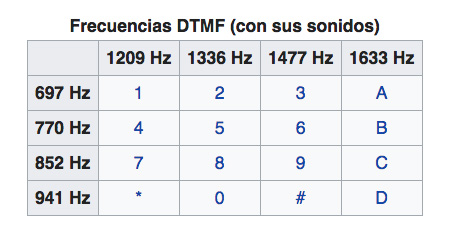
Microsoft Teams uses DTMF tones, but in out-of-band (OOB) mode, which means that the tones do not travel with the voice audio (RTP) but via separate signalling (such as SIP INFO or RFC 2833), allowing calls to connect to systems such as IVRs or automated receptionists; however, they may be suppressed in group calls or meetings.
How It works in Teams (OOB or Out-of-Band mode):
- Uses Separate Signalling: Instead of "singing" the tones as part of the audio (as we were used to), Teams sends them as separate signalling commands that are not heard.
- Common Mechanisms: This is generally done via:
- RFC 2833 (RTP Payload for DTMF Events): The tones are sent in separate data packets but synchronised with the audio.
- SIP INFO: The digits are sent in SIP messages, completely independent of the audio stream.
Main uses of DTMF tones in Teams meetings and calls
- Microphone management: Press *6 to mute or unmute your audio.
- Raise/Lower hand: Press *5 to indicate you wish to speak or withdraw.
- Conference control (Coordinator):
- *7: Lock or unlock the meeting.
- *8: Admit everyone from the lobby.
- *9: Enable/disable entry/exit announcements.
- IVR Navigation: In calls, numbers and symbols are used to interact with interactive voice response (IVR) systems, such as selecting options or entering codes.
Complete list of available commands
- *1: Privately play a description of the available DTMF commands.
- *3: Privately play the name of each participant in the audio conference.
- *4: Mute the audience or return mute control to participants.
Important: Muting the audience does not unmute individual participants. When the audience is muted, participants hear a message explaining how to unmute themselves. - *5: Raise or lower hand.
- *6: Mute or unmute the microphone.
- *7: Lock or unlock the audio conference.
- *8: Admit all participants in the lobby to the audio conference. After using this command, all participants in the lobby will be able to join the meeting.
- *9: Enable or disable announcements for participants joining and leaving the call. All meeting participants hear the announcements.
- *21: Admit all attendees waiting in the lobby.
- *22: Mute everyone except the organiser.
- *23: Enable or disable entry and exit announcements.